

Last time, I wrote about how I believe every small to medium sized business should consider a NAS. In this installment, I’ll be focusing on SMB3.
SMB3
SMB (server message block) is the core of Microsoft’s and, more recently, Apple’s networking. Qnap, like many NAS manufacturers, uses open source SAMBA code to provide SMB services on its NASes.
It is important to know that SAMBA’s implementation of SMB3 does not have all the bells and whistles found in Windows 8.1 and MS Server 2012’s SMB3 implementation. The single most significant difference is that Microsoft’s SMB3 provides for multi-channel communication. I”ll discuss this difference in more detail later in this series. For now, there are two key implications.
First, performance increases are significant as you compare SMB1, 2 and SMB3. In my tests, this difference is quite obvious using 10GbE. The implication is that Windows 8.1 or Server 2012 clients will see faster transfer speeds from NASes like QNAP’s TS-870 Pro and TS-470 Pro running QTS 4.1 (which supports SAMBA’s SMB3 implementation) than previous versions of Windows. For now, MacOS Mavericks appears to be using SMB2, so will not benefit from SMB3 enhancements.
Second, Microsoft’s SMB3 multichannel is perhaps the most significant feature added to the SMB protocol in over 25 years. In simple terms, an older SMB2 connection in Windows 7 can be compared to a single lane highway and data traveling on this highway loaded into a 1995 half ton pick-up truck. A video file uploaded over 10GbE to a server is limited by this single lane highway and the older truck.
SAMBA’s SMB3 gives us the 2013 turbo-charged truck that can travel faster, carry a larger load and use less fuel doing it. Microsoft’s SMB3 multichannel takes this up a notch by adding multiple lanes, so now we can have more of our turbo charged trucks (US made chrome for semi trucks) on the highway simultaneously. Our video file upload carried by these trucks moves much quicker as a result.
The number of channels increases with the computer’s number of CPU cores and network connections. If we upgrade from a four-core i5 processor to an i7 with 8 logical cores, we effectively increase from 4 to 8 lanes on our single 10GbE Ethernet link. If we add a second network link, Microsoft’s SMB3 implementation detects this and automatically adds more lanes. You can read more about SMB3 multichannel here.
In an impressive example of Microsoft’s SMB3 multichannel, the screen grab below shows 1480 MB/s in a real world copy/paste between two Windows 8.1 workstations, each sharing an 8 GB RAM drive. How was this possible? In a hands-down easiest network configuration ever, I simply connected the workstations with two 10GbE Ethernet cables using Intel X-540-T2 dual-port 10GbE network interface cards. Zero configuration was required on either the workstations or 10GbE switch.
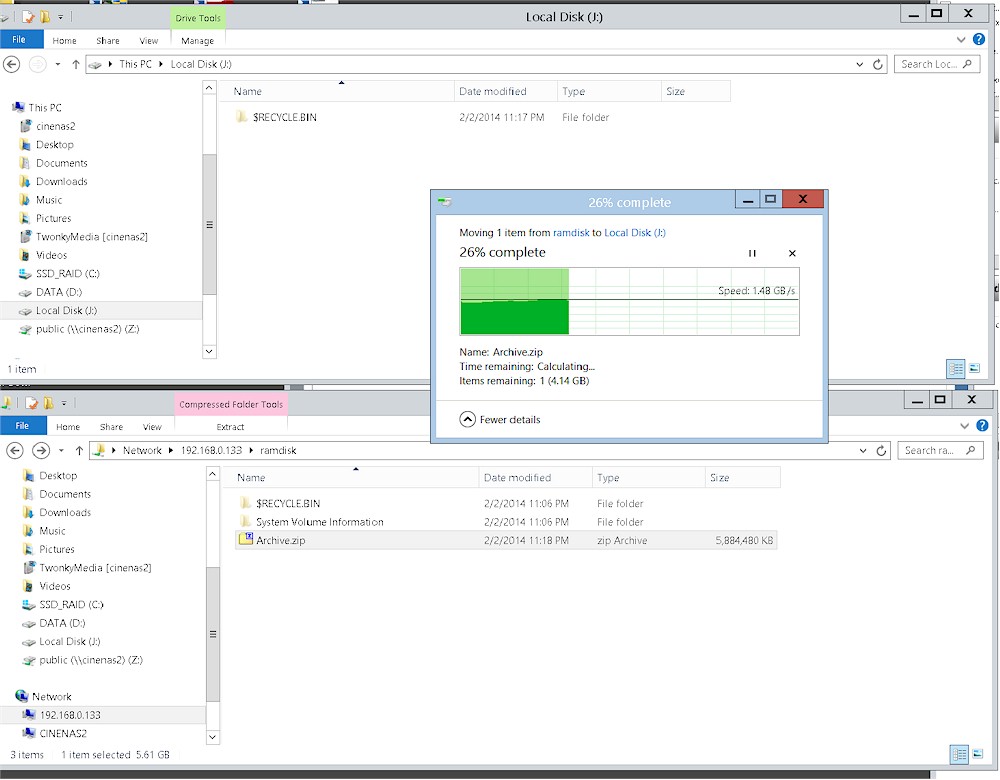
Wowza! 1480 MB/s transfer
For anyone who has configured NIC teaming or LACP link aggregation, the result above should amaze you. For really inexpensive high speed networking, two eBay quad port 1GbE cards plus four CAT5e LAN cables and you’re at 480MB/s with zero configuration! In my 20 plus years of networking, I’ve never seen something just work like this.
Setting up Windows SMB3 10GbE
If you are using a Windows 2012 or newer server, and it is configured as a domain controller, it may be defaulted to encrypting all traffic. This will slow down 10Gbe connections!
Disable these two settings in the Default Domain Controller Group Policy on the server.
Domain Member: Digitally encrypt or sign secure channel data (always)
Microsoft network server: Digitally sign communications (always)
References:
https://technet.microsoft.com/en-us/library/cc736800(v=ws.10).aspx
https://technet.microsoft.com/en-us/library/cc786681(v=ws.10).aspx
First of all, while testing, uninstall antivirus software. Don’t just disable it, uninstall it. Add it back in only once you are done with all other testing. Bitdefender, for example, in default configuration will dramatically slow down 10GbE connections. Microsoft Security Essentials seems to have little effect, but it’s not my recommended AV recommendation either.
Also, with over 50 years experience as an alarm control system Merrillville in for home, companies and government premises. Our service includes alarm systems, security guard hire, monitoring and additionally CCTV.
Jumbo frames and driver tuning should be on your list of things to do for best 10GbE performance. I typically never touched these settings in 1GbE environments, however the images below make it very clear that jumbo frames and driver tuning are well worth the effort to configure. In test one I’ve used default network driver settings and standard frames.

Performance with no tweaks
The second result shows clearly the performance increase to be had by tweaking network driver settings, and enabling jumbo frames.

Performance with all tweaks
As far as driver tweaks on Intel 10GbE NICs in the Windows environment, you may want to look at RSS queues, which according to Intel, should be set to match your computer’s logical core count. This may make a difference in SMB3 multichannel performance in Windows 8 and Server 2012. SMB3 has default values that can be tuned using Powershell commands. By default each NIC will get four TCP/IP sessions, up to a maximum of 8 channels per client/server connection. RSS tuning in turn will affect how this workload is distributed over the available CPU cores. I would suggest that you set up a few ram drive shares and experiment with file copies in your environment to see what works best. If you are just setting up a 10GbE NAS in a MAC environment, start with jumbo frames.
I also increased the transmit and receive buffers to their maximums, and enabled most performance options. These tweaks generally will use more RAM and CPU resources, but increase 10GbE transfer speeds. On a heavily loaded server, you may want to dial your settings back.
10GbE Tweaking Details
The following tweaks can increase 10GbE throughput by up to 200 MB/s. First the adjustments on Intel’s X540-T1 NIC. If you have a -T2 NIC and are using both channels, be sure to make the changes on both sets of properties.
First, set jumbo packets (frames) to the maximum 9014 Bytes.

Intel X540 NIC tweak – jumbo frame
Then set Receive Side Scaling (RSS) queues to match the CPU logical core count. On an i7 based computer with hyper-threading enabled (you may have to turn this on via computer’s BIOS), you should see 8 cores.

Intel X540 NIC tweak – RSS queues
And make sure RSS is enabled.

Intel X540 NIC tweak – RSS enable
Next, disable Virtual Machine Queues if you see this option (Server 2012 only).
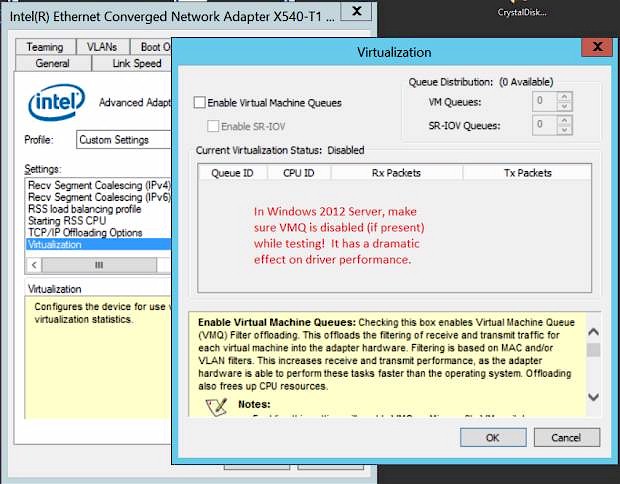
Intel X540 NIC tweak – Virtualization
Then increase receive buffers to the maximum (4096).
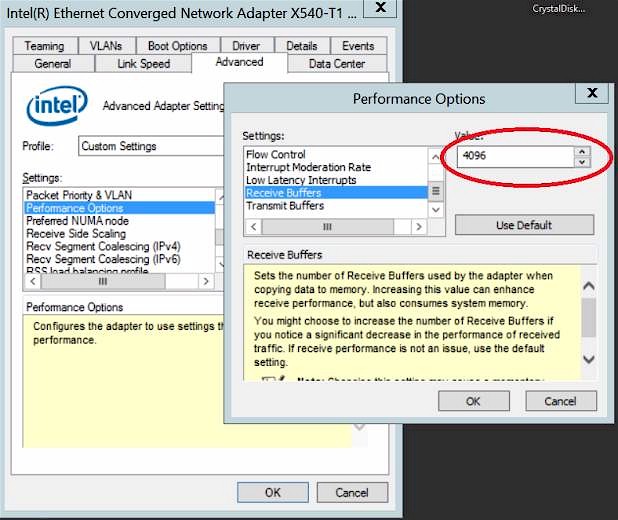
Intel X540 NIC tweak – RCV buffers
And also increase transmit buffers. Their maximum is 16384.
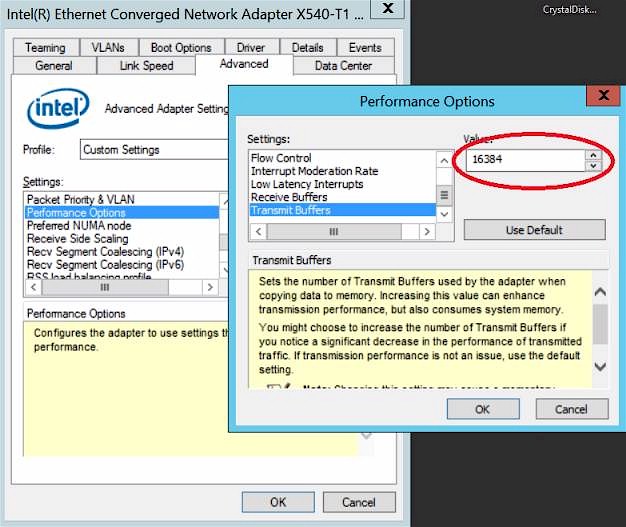
Intel X540 NIC tweak – XMIT buffers
Once you have made these changes, you should see some impressive speeds. Remember to create and share RAM disks on both your target and host machines while testing, to eliminate disk speed limitations.
Conclusion
As a teaser, your 10GbE workstation will also work quite nicely as a 4K player just in case you have a 4K display handy. For many of you, just purchasing a 10GbE enabled NAS unit is all you’ll need for a server. Just remember to enable jumbo frames and check that SMB3 is enabled! On QNAP’s lastest firmware, you’ll find those settings here:
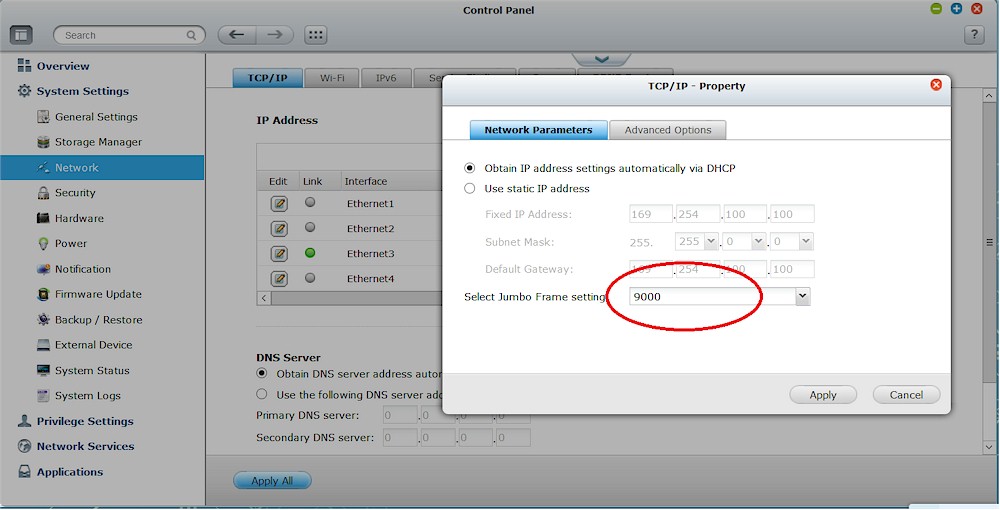
QNAP Jumbo Frame setting
And here:
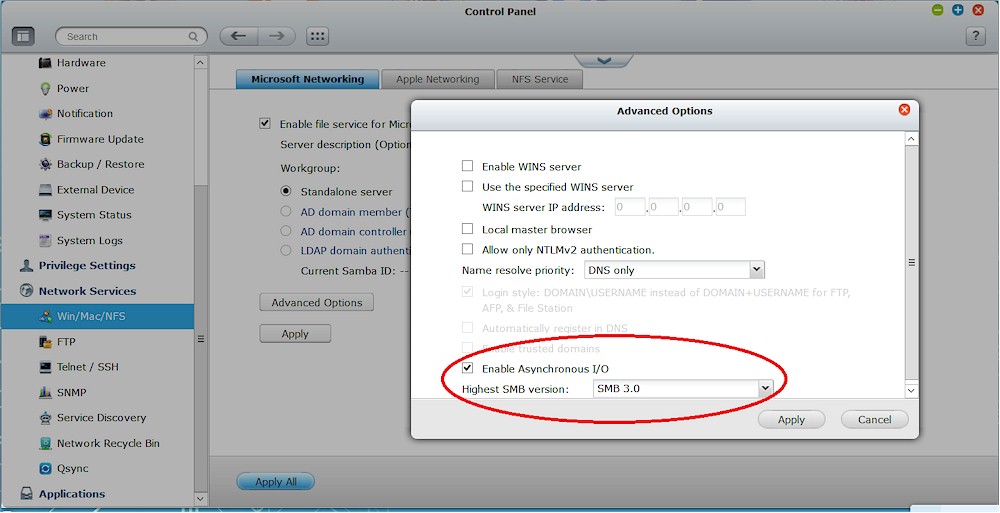
QNAP SMB3 enable
In the last installment of this series, I’ll show you how to build a Windows 8.1 video editing workstation and Windows 2012 shared storage server affordably capable of maxing out a 10GbE connection.
 Dennis Wood is Cinevate’s CEO, CTO, as well as Chief Cook and Bottle Washer. When not designing products, he’s likely napping quietly in the LAN closet.




















Hi Dennis,
This series has been so helpful. Do you have any suggestions on how to maybe implement this on a 100% mac network?
The QNAP NAS units support all Apple file/network protocols, so there is really nothing different in that environment…other than a few checkboxes on the NAS to turn on AFP, Bonjour etc. The guys at small-tree.com ( http://www.small-tree.com/10GbE_Cards_s/4.htm ) sell 10GbE Intel cards like the one’s we’re using, and provide drivers etc. You could also set up a fancy pants Windows 2012 server, but MAC’s won’t really take advantage of them. In other words, a 10GbE enabled NAS, and a 10GbE card for your MAC, and you’re set. If you have a local RAID drive array on your MAC already, you could just direct connect a few workstations by purchasing 10GbE cards for them..no 10GbE switch required if it’s just two workstations. This would be a good way to say share an external Thunderbolt drive array between two or more workstations 🙂
Cheers,
Dennis.
Awesome, thanks.
As well, just to confirm, when all of this is set up, there’s in effect two networks. One for the internet and one for the NAS. Is it feasible to run them both on the same network?
Hi Dennis,
This is SUCH a great article, thank you! We currently have an iMac setup with a 10Gb/s small tree thunderbolt card and two Pegasus Thunderbolt RAIDS. The 10Gb/s Ethernet is connected to the same Dlink switch you mention in one of your earlier articles. The single 10gb/s thunderbolt chip of the iMac is a bottleneck in this setup, though, since it has to serve both the RAID and the Ethernet connection. We are also experiencing random server slowdowns that can only be solved by restarting the iMac. It’s just not very reliable.
So I’m looking into replacing the iMac Server + Pegasus RAID + 10Gb/s Ethernet card with a QNAP 10Gb/s NAS. I would like to go with one of their rack mounted solutions, however. Do you have any recommendations? They seem to have a lot of different options and it’s kind of hard to tell the differences. I would like to be able to serve 3-5 workstations accessing 5k ProResHQ at the same time while allowing one workstation to access 5k RED raw.
Last but not least I’d love to second cinema-living’s question. Specifically how to fine tune the parameters such as buffer settings and such in an OSX setup. Enabling jumbo frames in particular can be a bit challenging with 10gb/s in OSX.
Would love to hear your insights.
Thanks,
Philipp
Thanks for the kind words gents. I’m pretty convinced, based on my travels and customer chats, that many photographers/videographers are really searching for a cost effective shared storage solution, just as we are. As far as the MAC network setup goes, there are a few options. You can just assign IP addresses where direct connections apply, so in effect, you are running two networks. Because QNAP has 2 x 1GbE ports and 2 x 10GbE ports on all of their 10GbE setups, you can connect 1 or both of the 1GbE ports to an older switch (trunked together if your switch supports this), and also connect the 10GbE ports to a new 10GbE switch. These can all be on the same network, same subnet, with 1GbE and 10GbE switches connected with one or more CAT5 network cables. That’s how we’re running the TS-870 right now 🙂 I’ll do a simple diagram in my next blog post for how this is set up.
For a switch-less 10GbE setup for two workstations, one workstation would connect to the NAS on the 10GbE port 1, the other to 10GbE port 2. These same workstations would likely have their 1GbE ports connected just as they are now for web access etc. As long as the IP addresses do not conflict with your existing network, you would be fine.
As far as jumbo frames etc. on the MAC side, unfortunately I’m not of much use. The folks over at Small-Tree would be the first place I would look as I see Intel even refers customers to Small Tree from their web site. It looks like ATTO and Sonnet have also introduced 10GbE adapters for MAC. If you can’t tune the driver settings, don’t sweat it. They are basically focused on optimizing single connections in an SMB3 windows environment..so in the MAC environment, the tuning suggestions would definitely bear some testing.
For rack mount, I’d suggest starting with the TS-EC879U-RP or TS-879U-RP which have room for 2 optional PCIe cards. 1 card can be added for 10GbE (2 ports), and optionally another for SAS (like the REXP-1200U-RP ), just in case you need more storage. Having seen these questions, I will attempt a simple diagram to illustrate the networking stuff 🙂
Cheers,
Dennis.
Pingback: Confessions Of A 10 GbE Newbie – Part 6: Breaking the 10GB Data Barrier | Cinevate – Tools for Filmmakers and Photographers
Hi Dennis,
I’m pretty new to networking, and your guide has been incredibly helpful with choosing hardware pieces for a 10Gb network. It is most helpful due to the similarities in application. I’m looking to edit utilizing a server 2012 R2 Essentials server running a quad core AMD 955 Black Edition processor with DDR3 32GB ram. I have a single intel x540-t1 in a PCI Express 2.0 16x slot (running at 4x) card direct connect to a Intel six core (12 multithreaded) x79 platform with 32 GB DDR3 ram. It also has an intel x540 t1 card in a PCI Express 2.0 16x slot (running at 8x).
I have configured the cards exactly as you have mentioned in the post above, and I get around 500-550 MB/s transfers. I’m using Ram drives to conduct the benchmark tests. I’m also using 15 foot Cat 6 cable to direct connect the two systems.
I’m wondering if there is anything else I can do. I’m using the default drivers that Windows installed for the cards (is this my issue?) Is it a CPU issue with less lanes being available compared to your workstation examples? What else may I be missing? I would ideally like to have a similar set up and reach at least 750MB/s transfer speeds, if not 1GB/s.
Thanks!
I would check a few things:
1. RAM drive software does vary, so hopefully you are using the SoftPerfect RAM disk to set up your drives.
2. Download and install the Intel latest drives for the cards. Make sure you get full wire speeds using the network tools I described in post 2: http://www.cinevate.com/blog/confessions-of-a-10-gbe-network-newbie-part-2-test-toolkit/ specifically…NTttcp.
3. Uninstall any antivirus for testing…don’t just disable it. We’re using Webroot, which at default does not kill network speeds.
4. Look at CPU cycles during a transfer. If AV is a problem, you should see it spike CPU cycles during transfers.
5. Make sure on the server that Virtual Machine Queues (in the Intel driver propertires) is not enabled..this hurt performance a lot.
Hope that helps 🙂
Thanks!
Update:
1. I have used Soft Perfect Ram disk to set up the drives.
2. I downloaded and installed the latest drivers, and have installed them. I’m getting 1045-1180 MB/s via ntttcp. (Ram Drive to Ram Drive I’m getting max 2.8gigabit transfers so about 300MB/s max)
3. I’ll have to attempt this. Most of my networking testing issues have been due to Windows firewall on the server side. I’ll ensure that I uninstall to get a full test. I’m using avast if you have any familiarity with that on the windows 10pc.
4. This is where I’m not familiar with AV. I do see my Server (AMD phenom x4 quad core) cpu spike in the 80% range, never maxing out. What does this indicate, and is this unusual?
5. Virtualization is disabled (Looks the same as your above images).
Besides #4, I guess I’ll just try uninstalling any anti virus and see if that is the cause to my problem.
If you can think of anything else please let me know.
Thanks!
While testing, disable the firewalls, and uninstall the Antivirus. 80% CPU load during a transfer sounds high. If the Antivirus is holding you back, you’ll see it’s process grab a lot of server resources during transfer. Once you get the speed up, you can add the firewall and Antivirus back in, and test each time. You may end up configuring your AV to ignore network traffic if it’s slowing transfers excessively…or have it exclude your video shares from scanning. I haven’t tried Avast, bit if I recall correctly, Bit Defender was an issue for me.
I’m assuming your workstation client is Windows 8.1 or newer, correct?
Yes, my workstation has windows 10, and right now that’s the only client (and it is directly connected to the Server). I’ll give those ideas a run.
Since the load is heavy on the CPU on the server, I’m curious if that’s my bottleneck. I ran transfers last night without any firewall or anti virus running on the server (since it’s a new install I hadn’t installed anti-virus on it yet). Do you know of any other anti virus or firewall settings beyond the Windows Firewall (which was disabled last night)?
Hi Dennis, I’ve got some updates for you to evaluate.
First I uninstalled all AV and restarted both machines and initialized all your settings from your blog.
I began running copies of 3 large video files utilizing RAM Disks on both my Windows 2012 R2 Essentials server running:
Windows Server 2012 R2 Essentials:
AMD Phenom x4 955
Asus M5a99FX Pro R2.0
32GB RAM
Intel x540T1 in the main PCI-Express 16x slot (Blue)(removed the video card and remote access)
LSI MegaRAID 9266-8i in the second PCI-Express 16x Slot (Blue)
I got transfer speeds of 300MB/s with a server CPU load of 40%, but here’s the crazy thing, on the last file it jumps to 500MB/s with a server CPU Load of 40%. All while my windows 10 PC is barely being utilized.
I did the same in reverse. I copied from my Windows 10 PC:
Windows Server 2012 R2 Essentials:
Windows 10 PC
Intel i7 3930 six core
Sabertooth x79 motherboard
32GB RAM
GTX 580 in first PCI Express 16x slot
Intel x540T1 in the second PCI-Express 16x slot
I got 300MB/s flat transfer. I didn’t see any kind of jump up to a higher speed on the third video file. These files accumulated to about 18GB.
I ran some SMB comands on Powershell, but I have no idea what to make of them:
Server
Windows PowerShell
Copyright (C) 2014 Microsoft Corporation. All rights reserved.
PS C:\Users\Eric> Get-NetAdapter
Name InterfaceDescription ifIndex Status MacAddress LinkSpeed
—- ——————– ——- —— ———- ———
Ethernet 2 Realtek PCIe GBE Family Controller 13 Up 30-5A-3A-07-C0-45 1 Gbps
Ethernet 4 Intel(R) Ethernet Converged Networ…#3 18 Up A0-36-9F-75-42-54 10 Gbps
PS C:\Users\Eric> Get-NetAdapterRSS
Name : Ethernet 4
InterfaceDescription : Intel(R) Ethernet Converged Network Adapter X540-T1 #3
Enabled : True
NumberOfReceiveQueues : 4
Profile : NUMAStatic
BaseProcessor: [Group:Number] : :0
MaxProcessor: [Group:Number] : :
MaxProcessors : 16
RssProcessorArray: [Group:Number/NUMA Distance] :
IndirectionTable: [Group:Number] :
PS C:\Users\Eric> Get-NetAdapterRDMA
PS C:\Users\Eric> Get-NetAdapterRDMA
PS C:\Users\Eric> Get-NetAdapterHardwareInfo
Name Segment Bus Device Function Slot NumaNode PcieLinkSpeed PcieLinkWidth Version
—- ——- — —— ——– —- ——– ————- ————- ——-
Ethernet 2 0 9 0 0 2.5 GT/s 1 1.1
Ethernet 4 0 1 0 0 5.0 GT/s 8 1.1
PS C:\Users\Eric> Get-SmbClientConfiguration
ConnectionCountPerRssNetworkInterface : 4
DirectoryCacheEntriesMax : 16
DirectoryCacheEntrySizeMax : 65536
DirectoryCacheLifetime : 10
EnableBandwidthThrottling : True
EnableByteRangeLockingOnReadOnlyFiles : True
EnableLargeMtu : True
EnableMultiChannel : True
DormantFileLimit : 1023
EnableSecuritySignature : True
ExtendedSessionTimeout : 1000
FileInfoCacheEntriesMax : 64
FileInfoCacheLifetime : 10
FileNotFoundCacheEntriesMax : 128
FileNotFoundCacheLifetime : 5
KeepConn : 600
MaxCmds : 50
MaximumConnectionCountPerServer : 32
OplocksDisabled : False
RequireSecuritySignature : False
SessionTimeout : 60
UseOpportunisticLocking : True
WindowSizeThreshold : 1
PS C:\Users\Eric> Get-SmbClientConfiguration | Select EnableMultichannel
EnableMultichannel
——————
True
PS C:\Users\Eric> Get-SmbClientNetworkInterface
Interface Index RSS Capable RDMA Capable Speed IpAddresses Friendly Name
————— ———– ———— —– ———– ————-
18 True False 10 Gbps {fe80::386a:a062… Ethernet 4
16 False False 0 bps {fe80::5efe:192…. isatap.{B9E70B2E…
13 False False 0 bps {fe80::58fb:4e2:… Ethernet 2
14 False False 0 bps {fe80::5efe:192…. isatap.{6C6C1BAE…
PS C:\Users\Eric> Get-SmbServerConfiguration
AnnounceServer : False
AsynchronousCredits : 64
AutoShareServer : True
AutoShareWorkstation : True
CachedOpenLimit : 5
AnnounceComment :
EnableDownlevelTimewarp : False
EnableLeasing : True
EnableMultiChannel : True
EnableStrictNameChecking : True
AutoDisconnectTimeout : 0
DurableHandleV2TimeoutInSeconds : 30
EnableAuthenticateUserSharing : False
EnableForcedLogoff : True
EnableOplocks : True
EnableSecuritySignature : True
ServerHidden : True
IrpStackSize : 15
KeepAliveTime : 2
MaxChannelPerSession : 32
MaxMpxCount : 50
MaxSessionPerConnection : 16384
MaxThreadsPerQueue : 20
MaxWorkItems : 1
NullSessionPipes :
NullSessionShares :
OplockBreakWait : 35
PendingClientTimeoutInSeconds : 120
RequireSecuritySignature : True
EnableSMB1Protocol : True
EnableSMB2Protocol : True
Smb2CreditsMax : 2048
Smb2CreditsMin : 128
SmbServerNameHardeningLevel : 0
TreatHostAsStableStorage : False
ValidateAliasNotCircular : True
ValidateShareScope : True
ValidateShareScopeNotAliased : True
ValidateTargetName : True
EncryptData : False
RejectUnencryptedAccess : True
PS C:\Users\Eric> Get-SmbServerConfiguration | Select EnableMultichannel
EnableMultichannel
——————
True
Windows PowerShell
Copyright (C) 2014 Microsoft Corporation. All rights reserved.
PS C:\Windows\system32> Get-SmbServerNetworkInterface
Scope Name Interface Index RSS Capable RDMA Capable Speed IpAddress
———- ————— ———– ———— —– ———
* 18 True False 10 Gbps 192.168.2.1
* 18 True False 10 Gbps fe80::386a:a062:…
* 13 False False 1 Gbps 192.168.1.60
* 13 False False 1 Gbps fe80::58fb:4e2:b…
(Windows 10 to the Server 2012 Essentials – 500MB/s Max)
PS C:\Windows\system32> Get-SmbConnection
ServerName ShareName UserName Credential Dialect NumOpens
———- ——— ——– ———- ——- ——–
192.168.2.2 Desktop RAM Disk PERRYHOMESERVER\… PERRYHOMESERVER\… 3.02 1
PERRYWINSERVER Shared Folders PERRYHOMESERVER\… PERRYHOMESERVER…. 3.02 0
PERRYWINSERVER sysvol PERRYHOMESERVER\… PERRYHOMESERVER…. 3.02 0
Windows PowerShell
Copyright (C) 2014 Microsoft Corporation. All rights reserved.
PS C:\Windows\system32> Get-SmbMultichannelConnection
Server Name Selected Client IP Server IP Client Server Client RSS Client RDMA
Interface Interface Capable Capable
Index Index
———– ——– ——— ——— ————– ————– ————– ————–
192.168.2.2 True 192.168.2.1 192.168.2.2 18 11 True False
PS C:\Windows\system32> Get-SmbMultichannelConnection -IncludeNotSelected
Server Name Selected Client IP Server IP Client Server Client RSS Client RDMA
Interface Interface Capable Capable
Index Index
———– ——– ——— ——— ————– ————– ————– ————–
192.168.2.2 True 192.168.2.1 192.168.2.2 18 11 True False
192.168.2.2 False 192.168.1.60 192.168.1.106 13 9 False False
192.168.2.2 False 127.0.0.1 192.168.2.2 1 11 False False
192.168.2.2 False 192.168.2.1 192.168.1.106 18 9 False False
192.168.2.2 False 192.168.1.60 192.168.2.2 13 11 False False
192.168.2.2 False 127.0.0.1 192.168.1.106 1 9 False False
(Server 2012 Essentials to Windows 10 – 300MB/s Max)
PS C:\Windows\system32> Get-SmbConnection
ServerName ShareName UserName Credential Dialect NumOpens
———- ——— ——– ———- ——- ——–
192.168.2.2 Desktop RAM Disk PERRYHOMESERVER\… PERRYHOMESERVER\… 3.02 1
PERRYWINSERVER Shared Folders PERRYHOMESERVER\… PERRYHOMESERVER…. 3.02 0
PS C:\Windows\system32> Get-SmbMultichannelConnection
Server Name Selected Client IP Server IP Client Server Client RSS Client RDMA
Interface Interface Capable Capable
Index Index
———– ——– ——— ——— ————– ————– ————– ————–
192.168.2.2 True 192.168.2.1 192.168.2.2 18 11 True False
PS C:\Windows\system32> Get-SmbMultichannelConnection -IncludeNotSelected
Server Name Selected Client IP Server IP Client Server Client RSS Client RDMA
Interface Interface Capable Capable
Index Index
———– ——– ——— ——— ————– ————– ————– ————–
192.168.2.2 True 192.168.2.1 192.168.2.2 18 11 True False
192.168.2.2 False 192.168.1.60 192.168.1.106 13 9 False False
192.168.2.2 False 127.0.0.1 192.168.2.2 1 11 False False
192.168.2.2 False 192.168.2.1 192.168.1.106 18 9 False False
192.168.2.2 False 192.168.1.60 192.168.2.2 13 11 False False
192.168.2.2 False 127.0.0.1 192.168.1.106 1 9 False False
Windows 10 PC:
Windows PowerShell
Copyright (C) 2015 Microsoft Corporation. All rights reserved.
PS C:\WINDOWS\system32> Get-NetAdapter
Name InterfaceDescription ifIndex Status MacAddress LinkSpeed
—- ——————– ——- —— ———- ———
Local Area Connection Intel(R) 82579V Gigabit Network Conn… 9 Up 74-D0-2B-2B-D0-6A 1 Gbps
Ethernet Intel(R) Ethernet Converged Network … 11 Up A0-36-9F-75-44-82 10 Gbps
PS C:\WINDOWS\system32> Get-NetAdapterRSS
Name : Local Area Connection
InterfaceDescription : Intel(R) 82579V Gigabit Network Connection
Enabled : True
NumberOfReceiveQueues : 2
Profile : NUMAStatic
BaseProcessor: [Group:Number] : 0:0
MaxProcessor: [Group:Number] : 0:10
MaxProcessors : 4
RssProcessorArray: [Group:Number/NUMA Distance] : 0:0/0 0:2/0 0:4/0 0:6/0 0:8/0 0:10/0
IndirectionTable: [Group:Number] :
Name : Ethernet
InterfaceDescription : Intel(R) Ethernet Converged Network Adapter X540-T1
Enabled : True
NumberOfReceiveQueues : 6
Profile : NUMAStatic
BaseProcessor: [Group:Number] : 0:0
MaxProcessor: [Group:Number] : 0:10
MaxProcessors : 6
RssProcessorArray: [Group:Number/NUMA Distance] : 0:0/0 0:2/0 0:4/0 0:6/0 0:8/0 0:10/0
IndirectionTable: [Group:Number] : 0:0 0:2 0:4 0:6 0:8 0:10 0:0 0:2
0:4 0:6 0:8 0:10 0:0 0:2 0:4 0:6
0:8 0:10 0:0 0:2 0:4 0:6 0:8 0:10
0:0 0:2 0:4 0:6 0:8 0:10 0:0 0:2
0:4 0:6 0:8 0:10 0:0 0:2 0:4 0:6
0:8 0:10 0:0 0:2 0:4 0:6 0:8 0:10
0:0 0:2 0:4 0:6 0:8 0:10 0:0 0:2
0:4 0:6 0:8 0:10 0:0 0:2 0:4 0:6
0:8 0:10 0:0 0:2 0:4 0:6 0:8 0:10
0:0 0:2 0:4 0:6 0:8 0:10 0:0 0:2
0:4 0:6 0:8 0:10 0:0 0:2 0:4 0:6
0:8 0:10 0:0 0:2 0:4 0:6 0:8 0:10
0:0 0:2 0:4 0:6 0:8 0:10 0:0 0:2
0:4 0:6 0:8 0:10 0:0 0:2 0:4 0:6
0:8 0:10 0:0 0:2 0:4 0:6 0:8 0:10
0:0 0:2 0:4 0:6 0:8 0:10 0:0 0:2
PS C:\WINDOWS\system32> Get-NetAdapterRDMA
PS C:\WINDOWS\system32> Get-NetAdapterHardwareInfo
Name Segment Bus Device Function Slot NumaNode PcieLinkSpeed PcieLinkWidth Version
—- ——- — —— ——– —- ——– ————- ————- ——-
Local Area Connection 0 0 25 0 Unknown
Ethernet 0 2 0 0 5.0 GT/s 8 1.1
PS C:\WINDOWS\system32> Get-SmbClientConfiguration
ConnectionCountPerRssNetworkInterface : 4
DirectoryCacheEntriesMax : 16
DirectoryCacheEntrySizeMax : 65536
DirectoryCacheLifetime : 10
DormantFileLimit : 1023
EnableBandwidthThrottling : True
EnableByteRangeLockingOnReadOnlyFiles : True
EnableInsecureGuestLogons : True
EnableLargeMtu : True
EnableLoadBalanceScaleOut : True
EnableMultiChannel : True
EnableSecuritySignature : True
ExtendedSessionTimeout : 1000
FileInfoCacheEntriesMax : 64
FileInfoCacheLifetime : 10
FileNotFoundCacheEntriesMax : 128
FileNotFoundCacheLifetime : 5
KeepConn : 600
MaxCmds : 50
MaximumConnectionCountPerServer : 32
OplocksDisabled : False
RequireSecuritySignature : False
SessionTimeout : 60
UseOpportunisticLocking : True
WindowSizeThreshold : 8
PS C:\WINDOWS\system32> Get-SmbClientConfiguration | Select EnableMultichannel
EnableMultichannel
——————
True
PS C:\WINDOWS\system32> Get-SmbClientNetworkInterface
Interface Index RSS Capable RDMA Capable Speed IpAddresses Friendly Name
————— ———– ———— —– ———– ————-
11 True False 10 Gbps {fe80::51f2:e0de:deb2:2a07, 192.168.2.2} Ethernet
5 False False 100 Kbps {fe80::ffff:ffff:fffe} Teredo Tunneling Pseudo…
3 False False 100 Kbps {fe80::5efe:192.168.2.2} isatap.{AF39D4D2-6F46-4…
9 False False 1 Gbps {fe80::dd4f:4718:d882:9096, 192.168.1.106} Local Area Connection
6 False False 100 Kbps {fe80::5efe:192.168.1.106} isatap.{9180C8C3-8ED8-4…
PS C:\WINDOWS\system32> Get-SmbServerConfiguration | Select EnableMultichannel
EnableMultichannel
——————
True
PS C:\WINDOWS\system32> Get-SmbServerNetworkInterface
Scope Name Interface Index RSS Capable RDMA Capable Speed IpAddress
———- ————— ———– ———— —– ———
* 11 True False 10 Gbps 192.168.2.2
* 11 True False 10 Gbps fe80::51f2:e0de:deb2:2a07
* 9 False False 1 Gbps 192.168.1.106
* 9 False False 1 Gbps fe80::dd4f:4718:d882:9096
(Windows 10 PC to Server 2012 Essentials – Same 3 video files. Under 300MB/s then peaked at 500MB/s on last video file)
Windows PowerShell
Copyright (C) 2015 Microsoft Corporation. All rights reserved.
PS C:\WINDOWS\system32> Get-SmbConnection
ServerName ShareName UserName Credential Dialect NumOpens
———- ——— ——– ———- ——- ——–
192.168.1.40 Media Eric-PC\Eric Eric-PC\Eric 1.5 1
192.168.1.40 Music Eric-PC\Eric Eric-PC\Eric 1.5 1
192.168.1.40 Net My Documents Eric-PC\Eric Eric-PC\Eric 1.5 1
192.168.1.40 Photo Eric-PC\Eric Eric-PC\Eric 1.5 1
192.168.1.40 Video Eric-PC\Eric Eric-PC\Eric 1.5 1
192.168.2.1 V Eric-PC\Eric Eric-PC\Eric 3.0.2 4
PerryWinServer D Eric-PC\Eric Eric-PC\Eric 3.0.2 1
PS C:\WINDOWS\system32> Get-SmbMultichannelConnection
Server Name Selected Client IP Server IP Client Interface Index Server Interface Index Client RSS Capable Client
RDMA
Capabl
e
———– ——– ——— ——— ———————- ———————- —————— ——
PerryWinServer True 192.168.2.2 192.168.2.1 11 18 True False
192.168.2.1 True 192.168.2.2 192.168.2.1 11 18 True False
PS C:\WINDOWS\system32> Get-SmbMultichannelConnection -IncludeNotSelected
Server Name Selected Client IP Server IP Client Interface Index Server Interface Index Client RSS Capable Cli
ent
RD
MA
Cap
abl
e
———– ——– ——— ——— ———————- ———————- —————— —
PerryWinServer True 192.168.2.2 192.168.2.1 11 18 True Fal
PerryWinServer False 192.168.1.106 192.168.1.60 9 13 False Fal
PerryWinServer False 192.168.1.106 192.168.2.1 9 18 False Fal
192.168.2.1 True 192.168.2.2 192.168.2.1 11 18 True Fal
192.168.2.1 False 192.168.1.106 192.168.1.60 9 13 False Fal
192.168.2.1 False 192.168.1.106 192.168.2.1 9 18 False Fal
(Server 2012 Essentials to Windows 10 PC – 3 Video Files – 300MB/s Max)
PS C:\WINDOWS\system32> Get-SmbConnection
ServerName ShareName UserName Credential Dialect NumOpens
———- ——— ——– ———- ——- ——–
192.168.1.40 Media Eric-PC\Eric Eric-PC\Eric 1.5 1
192.168.1.40 Music Eric-PC\Eric Eric-PC\Eric 1.5 1
192.168.1.40 Net My Documents Eric-PC\Eric Eric-PC\Eric 1.5 1
192.168.1.40 Photo Eric-PC\Eric Eric-PC\Eric 1.5 1
192.168.1.40 Video Eric-PC\Eric Eric-PC\Eric 1.5 1
192.168.2.1 V Eric-PC\Eric Eric-PC\Eric 3.0.2 4
PerryWinServer D Eric-PC\Eric Eric-PC\Eric 3.0.2 1
Windows PowerShell
Copyright (C) 2015 Microsoft Corporation. All rights reserved.
PS C:\WINDOWS\system32> Get-SmbMultichannelConnection
Server Name Selected Client IP Server IP Client Interface Index Server Interface Index Client RSS Capable Client
RDMA
Capabl
e
———– ——– ——— ——— ———————- ———————- —————— ——
PerryWinServer True 192.168.2.2 192.168.2.1 11 18 True False
192.168.2.1 True 192.168.2.2 192.168.2.1 11 18 True False
PS C:\WINDOWS\system32> Get-SmbMultichannelConnection -IncludeNotSelected
Server Name Selected Client IP Server IP Client Interface Index Server Interface Index Client RSS Capable Cli
ent
RD
MA
Cap
abl
e
———– ——– ——— ——— ———————- ———————- —————— —
PerryWinServer True 192.168.2.2 192.168.2.1 11 18 True Fal
PerryWinServer False 192.168.1.106 192.168.1.60 9 13 False Fal
PerryWinServer False 192.168.1.106 192.168.2.1 9 18 False Fal
192.168.2.1 True 192.168.2.2 192.168.2.1 11 18 True Fal
192.168.2.1 False 192.168.1.106 192.168.1.60 9 13 False Fal
192.168.2.1 False 192.168.1.106 192.168.2.1 9 18 False Fal
If you can make anything of these numbers please let me know. There’s only a few basic things I can understand in these readings. Here is the information I referenced this from:
5.1. Verifying if you’re using SMB Multichannel
You can use the following steps to verify you are using SMB Multichannel.
Step 1: Verify network adapter configuration
Use the following PowerShell cmdlets to verify you have multiple NICs and/or to verify the RSS and RDMA capabilities of the NICs. Run on both the SMB server and the SMB client.
Get-NetAdapter
Get-NetAdapterRSS
Get-NetAdapterRDMA
Get-NetAdapterHardwareInfo
Step 2: Verify SMB configuration
Use the following PowerShell cmdlets to make sure SMB Multichannel is enabled, confirm the NICs are being properly recognized by SMB and that their RSS and RDMA capabilities are being properly identified.
On the SMB client, run the following PowerShell cmdlets:
Get-SmbClientConfiguration | Select EnableMultichannel
Get-SmbClientNetworkInterface
On the SMB server, run the following PowerShell cmdlets:
Get-SmbServerConfiguration | Select EnableMultichannel
Get-SmbServerNetworkInterface
Step 3: Verify the SMB connection
On the SMB client, start a long-running file copy to create a lasting session with the SMB Server. While the copy is ongoing, open a PowerShell window and run the following cmdlets to verify the connection is using the right version of SMB and that SMB Multichannel is working:
Get-SmbConnection
Get-SmbMultichannelConnection
Get-SmbMultichannelConnection -IncludeNotSelected
Source: http://blogs.technet…nd-smb-3-0.aspx
It’s been some time since doing power shell SMB queries…so you may find better help over at arstechnica.com forum. That said, it looks like things are working ok.
Is your server is configured as a domain controller? It may be defaulted to encrypting all traffic. Disable these two settings in the Default Domain Controller Group Policy on the server.
Domain Member: Digitally encrypt or sign secure channel data (always)
Microsoft network server: Digitally sign communications (always)
References:
https://technet.microsoft.com/en-us/library/cc736800(v=ws.10).aspx
https://technet.microsoft.com/en-us/library/cc786681(v=ws.10).aspx
Just to confirm, when I run the Get-SmbServerConfiguration PS command on our 2012 server, it returns the following:
EnableSecuritySignature : False
Your server is returning True for the same value, so is likely encrypting all traffic to your Windows 10 client. With the group policy tweaks, it should return false. Let me know how that works for you 🙂
Thanks, I was just combing over your blog, and noted that on my list of tweaks. I’ll check on that tonight and report back!
That helped a ton! I was able to check it on my lunch break. I got transfers in the 750MB/s range with lower CPU usage. Encryption took a big bite out of my transfer speeds.
I’m playing with RSS Queues on both the server and client and I’m playing with RSS Cores which I noticed have some big impacts on speed after playing with them briefly today.
I think I’m going to start from scratch and reset the drivers and follow your steps in your blog once again. Now that I’ve got the system not working against me as much.
Here’s a thought. What if I took two windows 10 PC connected directly with each other. Would that eliminate the server privilege issues I just had and any future ones I may have?
That’s great 🙂
I’ve sent out updates for both this blog post and the version over at smallnetbuilder.com with the encryption note..as it’s an important one for server performance.
There are a few whitepapers out there that will help with RSS Queues but in general you’ll want to match the RSS Queue setting with the number of logical cores in that system. You may want to make sure Hyper threading is turned on in the machine BIOS so the OS will see the extra cores.
I did quite a few tests with two Windows 8.1 clients directly connected. It works very well. The only reason not to do that is that the Windows 10 “server” would be limited to 20 connections…likely fine if it’s just a few machines.
This may help: http://blogs.msdn.com/b/saponsqlserver/archive/2012/01/12/network-settings-network-teaming-receive-side-scaling-rss-amp-unbalanced-cpu-load.aspx
Cheers,
Dennis.
Thanks! I’ll take a look at that blog as well.
My conundrum with RSS queues is this. I have a 6 core processor, and I only see the option for 4 and 8 RSS Queues. So I either go under on Queues and choose 4or over with 8. As for hyper threading, I don’t have that available with my AMD cpu and my Windows 10 6 core already has it going (12 cores detected via hyper threading).
Ok, I’ve been able to replicate with fresh default drivers. In my testing I found interesting results.
So I followed your guide:
Jumbo packets – 9014
Interrupt -Enabled (by default)
Maximum RSS Queues – 4 for Server (quad core CPU no hyper threading) and 8 for the Windows 10 PC (hex core with hyper threading so 12 logical CPU’s, unfortunately only 8 and 16 option so it’s best to go under 12)
Receive buffer 4096 on both
Transmit Buffer 16384 on both
Receive side scaling – Enabled (by default)
I got good results 750MB/s transfer. The only thing is they would dip to 500 or high 400 range at times.
I tested using 4 RSS Queues for both PC and Server since the server is only capable of 4, and I got the same speeds, but they were more sustained and didn’t dip at all with single file transfers.
Now with the RSS Queues, I’ve done everything I can think of to improve speeds. There was a split second where I saw it jump near 1GB/s, but it came back down to the 700-800MB/s range. I’m wondering if I’ve met the max speed I can get due to limited cores. Luckily I have a system to test that. I’m borrowing essentially the same chipset and CPU that my Windows 10 system has to test more cores. I’m hoping with more RSS Queues available, I can get that 1GB/s speed that I’m dying for.
If you have any other Server 2012 mods please let me know.
I also noticed this with my quad core Server CPU, I noticed that 3 of the 4 cores at times are “parked” in the Resource monitor. CPU 0 is always active, and CPU 1 will go back and force. CPU 2 and 3 will go parked when there isn’t activity. Could this be effecting performance at all?
I wanted to report back to you with my findings.
First, all your settings and server 2012 R2 permissions modifications are 100% correct. As for hardware, that is where I ran into bottlenecks. I started with a quad core AMD processor and a hex core intel CPU, maxing my speeds at 750MB/s. I swapped out the quad core AMD with another hex core intel CPU and got 1GB/s transfers. I’m not sure if I could have gotten away with a quad core Intel cpu with hyperthreading or not, but my bottleneck wound up being the AMD CPU.
Now for my next problem which is not related to networking. I have Windows 10 utilizing my Disk at 100%. I can’t figure out the bug at the moment, so that’s another issue, for another forum, but I’ll report back what results I get once I get that issue sorted out.
I’m hoping I get the same results with a more user friendly platform than Windows Server 2012 R2 Essentials.